
Files
Saving
Saving a screenplay as a .fountain file, by hand or automatically, and where new documents go.
On this page
A Calmly Script screenplay is a .fountain file: plain text that any other
Fountain app, and any text editor, can open. There is no other format to save
in. Word, PDF and Final Draft files are made with
Export, and they are copies: the .fountain file stays
your screenplay.
Save and Save as
- , or Ctrl+S⌘S, writes the screenplay to its file. A screenplay that has never been saved has no file yet, so Save asks where to put it, as Save as does.
- asks for a name and a place, saves the screenplay there, and from then on the document is that file: the next Save goes to the new one.
The name suggested for a new screenplay is its first line, in the default
save folder if you have chosen one (see below). A name that does not end in
.fountain gets .fountain added. If you give it an extension of another
format, the app does not save and tells you to use Export instead.
Is it saved?
The name of the file is in the middle of the title bar. A dot beside it means there are changes that are not in the file yet. Hold the pointer over the name to see where the file is.
When you close the window with changes that are not saved, Calmly Script asks whether to save them. If you answer no, the document is not lost straight away: it goes to (see Version history and backups).
Saving automatically
Settings › Saving › Save documents automatically writes every change to the file a moment after you make it, so there is nothing to save by hand. opens that section of Settings directly.
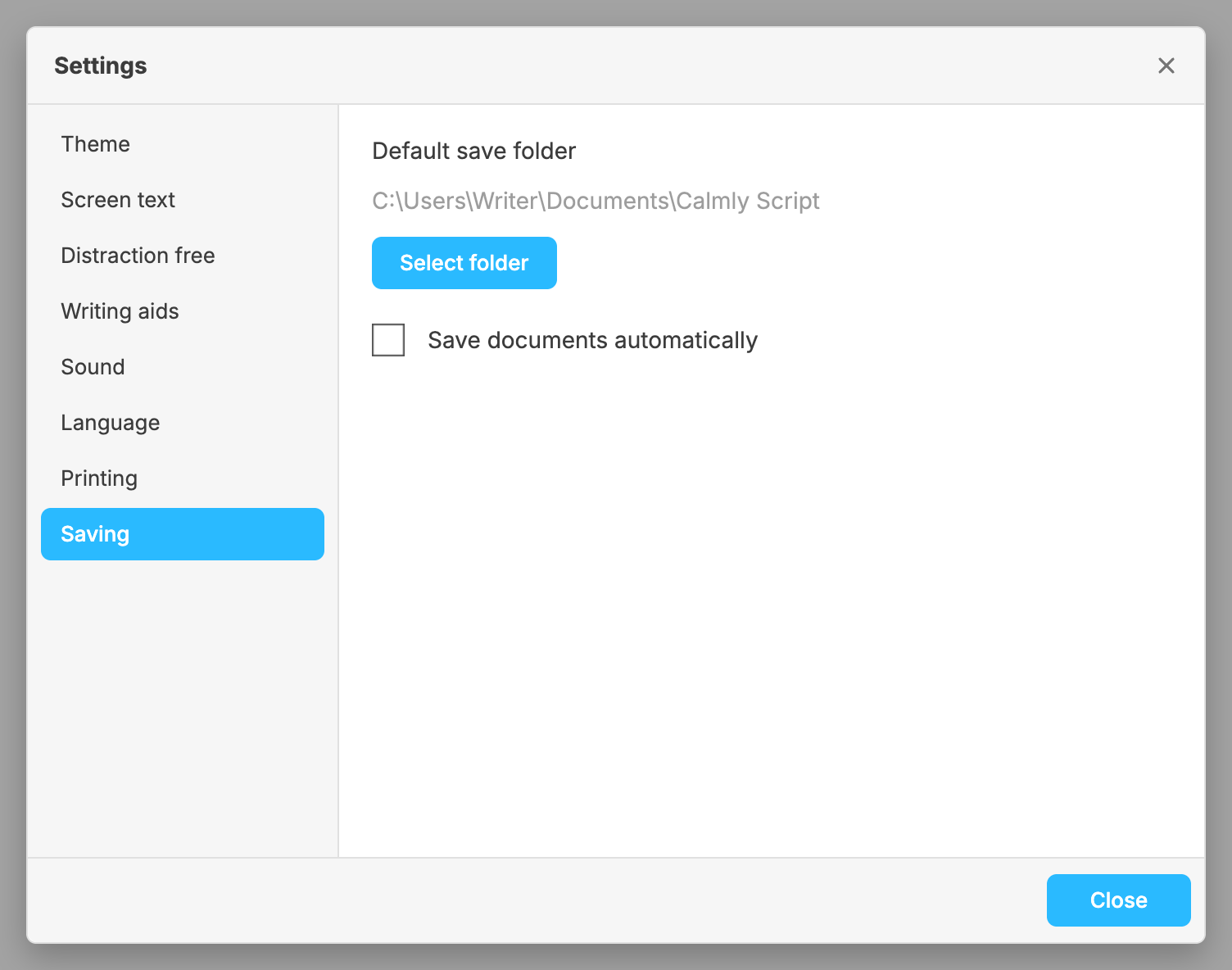
It is off when you start on Windows, macOS and Linux, and on when you start on Android. With it on:
- is no longer in the File menu, because the file is always up to date. stays: it moves the screenplay to another file, and the automatic saving goes on there.
- Closing the window asks nothing, unless writing to the file failed. Then the app tells you so once, with Save as to put the screenplay somewhere else, and closing, New or Open ask whether to go on without your latest changes in the file. They are safe in the app’s backups either way.
- A new screenplay gets a file of its own in the default save folder, as soon as it has something in it and you have pressed Enter↩ at the end of the first line (or when you close it or open another). The file is named after that first line, or Name (2).fountain if the folder already has a file of that name. If you change the first line later, the file keeps its name; use Save as to give it another.
The default save folder
Settings › Saving › Default save folder is where new screenplays are saved automatically, and where Save as starts for a screenplay that has no file yet. Select folder chooses it; Use the default folder goes back to the app’s own choice.
On Windows, macOS and Linux, if you choose nothing, new screenplays go to a Calmly Script folder in your Documents folder. On Android there is no such folder: until you choose one, a new screenplay stays in the app’s backups, and when you move on from it (with New or Open) the app asks you to choose a folder or to close it without saving (see Android).
Backups, whatever you choose
Saving or not, Calmly Script keeps its own copies of what you write, as you write it, so that a crash or a power cut does not cost you the text. After a crash, the document comes back when you start the app again, with its changes still marked as unsaved. These copies are separate from your file; see Version history and backups.