
Navigating and reviewing
Find and replace
Searching the script, with every line the word is on listed beside the page, and replacing it once or everywhere.
On this page
Find is the second tab of the Outline panel. The Outline takes you to a scene by its heading; Find takes you to a line by what it says, and it lists every line the word is on, so you can pick the one you meant before the caret moves.
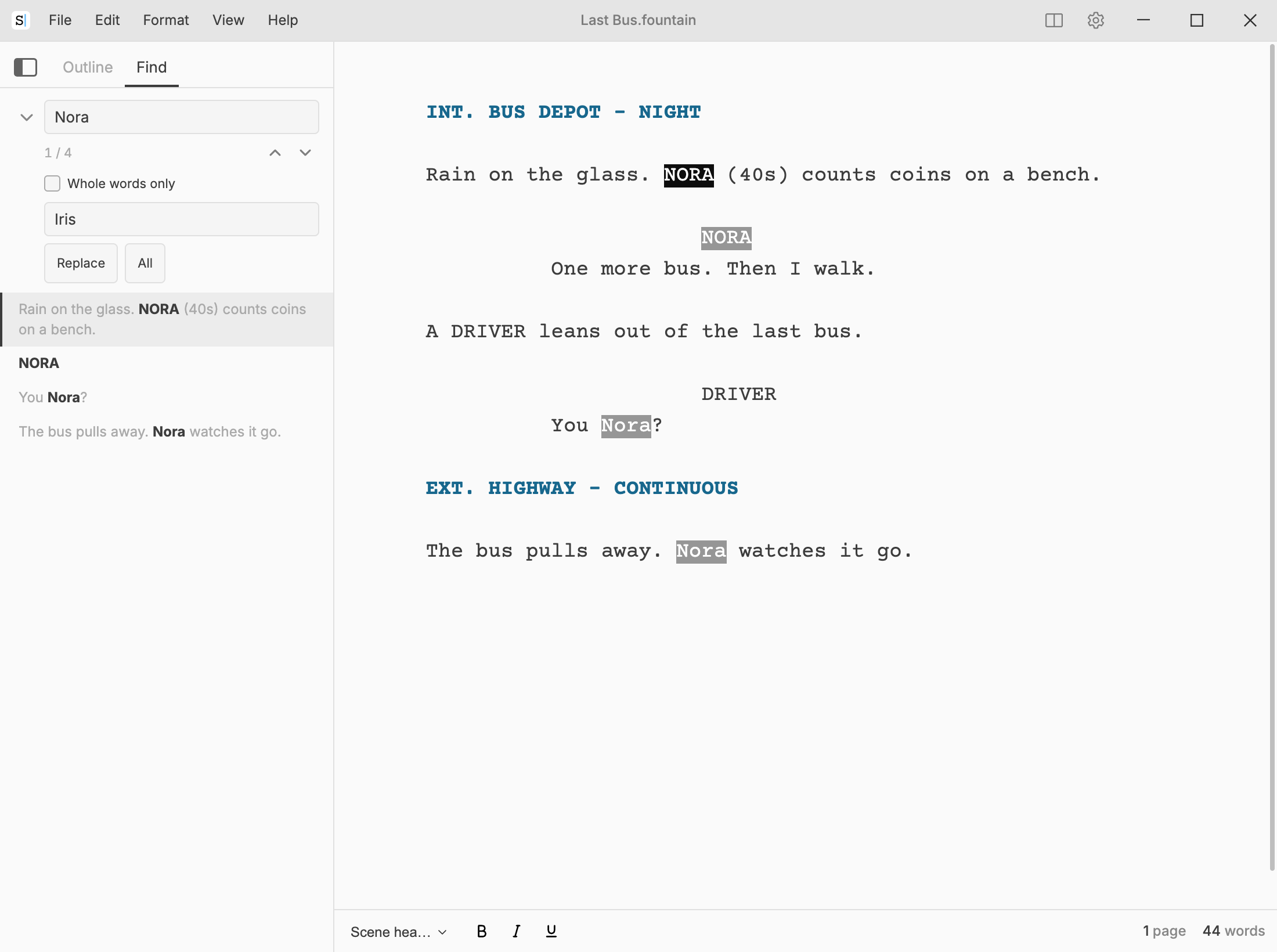
Searching
, or Ctrl+F⌘F. The panel opens on its Find tab with the caret in the field. If you had a few words selected in the script, they are already in the field, and the ones you selected are the current match. A selection that runs over more than one line is left out, because a search looks for words within a line.
Type at least two characters. The matches are highlighted in the script and listed under the field, one row per match with a piece of the line around it, and the count beside the arrows says which match you are on. The search does not care about capitals: nora finds NORA, Nora and nora. It also finds the term inside longer words: ana finds Mariana. To leave those out, see Whole words only below.
- Enter↩ (or F3F3) in the field goes to the next match, and Shift+Enter⇧↩ to the previous one. The two arrows under the field do the same.
- Click a row and the caret goes to that match.
- ↓↓ in the field moves into the list; ↑↑ on the first row goes back to the field.
The list shows up to 200 rows and says how many more there are. Every match is still highlighted in the script and reachable with the arrows.
When the panel stands beside the script, the search stays there while you write: you can click into the text, change it, and go back to the list, which catches up with your changes when you stop typing.
Switch to the Outline tab and the highlights leave the script, but the term stays in the field: back on Find, the search is where you left it, on the same match. Closing the panel forgets the search, whichever tab was showing.
Whole words only
The arrow at the left of the field unfolds the rest of the search. Right under the count is Whole words only. Tick it and the search finds the term only where it stands as a word of its own: ana finds Ana and ANA, but not Anabel or Mariana.
Punctuation, Fountain’s emphasis marks and apostrophes are not part of a
word, so _Ana_ and Ana’s are still found.
The option stays ticked while you go on searching, even if you fold the arrow back up. Closing the search turns it off, so the next search finds everything again.
Replacing
The same arrow shows a second field for the replacement, with two buttons:
- Replace replaces the current match and moves to the next one. Enter↩ in the replacement field does the same.
- All replaces every match. Ctrl+Enter⌘↩ in the replacement field does the same.
A replacement typed in lower case takes the capitals of what it replaces, so a character’s name can be changed everywhere at once: with iris as the replacement, NORA becomes IRIS in a character cue, and Nora becomes Iris in the action. Type the replacement with capitals of your own and it goes in exactly as you typed it.
Replace and All change only what the search finds. If a name is also part of longer words, tick Whole words only before renaming it: without it, replacing ana with eva also turns Anabel into Evabel and Mariana into Marieva.
Replacing is an edit like any other: takes it back.
Closing it
EscEsc in the field clears the search and goes back to the Outline tab. When the panel is floating over the script, it closes too.